
Is Your Theme Destroying Your SEO Schema Markup?
Discover how your theme’s native schema markup is directly conflicting with your SEO plugin and confusing the heck out of Google.
What is Schema Markup?
Before we jump into this discussion, let’s get a little clarity on what schema markup is and why it is so important for your SEO efforts.
Schema markup is a set of extra tags that Google eats like candy.
Instead of single line items of text, it groups things together in related sections to help Google better understand what you’re talking about.
Person Example
For instance, a person is a top-level schema “thing”.
And it will have certain items associated with it, like:
- Name
- Image
- Job title
Schema markup can group all this single-line info together into a section that relates to the person they each describe.
That makes it super easy for Google to relate all of this info to the main “thing” which is a person.
Business Example
A local business is also a schema “thing” and it has certain expected items associated with it, like:
- Name
- Location
- Phone number
- Store hours
There are even plugins like the Yoast Local SEO that provides this special schema markup for businesses.
Blog Post Example
Even your blog post is a schema thing called an “article” and it has certain expected attributes like:
- Title
- Featured image
- Date published / last modified
- Content
- Author
- Publisher
Recipe Example
Recipe plugins don’t just format the ingredients and steps into something pretty.
They also wrap all of that info in schema markup for things like:
- Title
- Image / video
- Ingredients
- How-to steps
- Nutrition info
- Star ratings
Ever see a recipe carousel at the top of a Google search with star ratings and such?
All of those rich results are the product of schema markup.
Schema is a Hierarchy
Schema markup has a top-down structure.
It needs to know what the top-level thing is first, and then what all of the attributes are that are associated with it.
For your site, it has has top-level schema as the publisher.
And then the next schema step down is either:
- a WebPage (a page on your site)
- or an Article (post on your site)
And then the next step down is the author of those pages and posts.
Another step is the date and time of publication, and then the date and time it was last modified.
After that comes the content and embedded entities like images or videos or recipes or such.
Half the Schema Staircase
If you just stick a recipe plugin on a site that doesn’t have all of the schema markup hierarchy above it, Google will recognize the special tags in the recipe.
But it won’t know who wrote it or published it.
It’s missing all of the other important site-level schema integration.
In other words, it’s like having part of a staircase in the middle of the wall with nothing above or below it.
You can climb it, but it doesn’t fully take you where you want to get to with it.
FYI, your theme will miss the top-level output of publisher and article if your SEO plugin is not fully configured too!
Where Site Schema Markup Originates
You can get top-down, full site schema markup from 2 main sources:
- Your theme
- An SEO plugin like Yoast SEO or RankMath
2 Schema Markup Languages
There are actually 3 schema markup languages, but we’ll focus here on the 2 in play.
Most modern theme frameworks output the older Microdata schema markup.
Those themes include:
- Genesis
- Kadence
- Astra
- GeneratePress
The 2 most popular SEO plugins output the newer JSON-LD schema markup, which is also the one that Google prefers.
Those plugins include:
- Yoast SEO
- RankMath
Competing Schema Markup
The problem is, when you add one of these SEO plugins, the native schema markup from the theme does not back out on:
- Kadence
- Astra
- GeneratePress
So you are outputting both schema languages and that confuses the crap out of Google and Bing.
Only Genesis has an automated way of detecting the presence of an SEO plugin and it will gracefully back out its native Microdata schema markup fully.
Plugins with Additional Schema Make it Worse
The native theme SEO is all over the place in what it supports. (I have the deep case studies to prove it.)
So when you add in a plugin that has its own schema markup, like for a recipe or video, now you have 3 different sets of schema markup that are not cooperating together.
Talk about confusing Google!!!!
Test and Fix Your Theme’s Schema
The best thing you can do is use the Schema Markup Validator tool to test your current schema markup output.
I suggest using a blog post that has nothing “special” embedded in it.
FYI, Google’s Rich Results tester is useless for this test. It will make you think all is fine and well.
If you see something like this, then you’re all good.
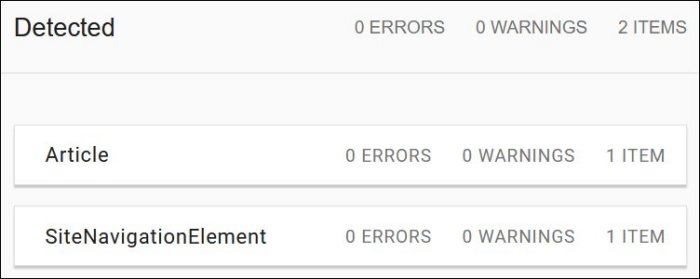
NOTE: we’re looking at the items on the left, not the errors and warnings.
If you see a mixed bag of results, and/or it does not start with Article, then it’s likely both your theme and your SEO plugin are competing against each other and it needs to be fixed.
Or, it may mean that your SEO plugin is not configured properly.
Get Help with Fixes
While some theme vendors have a tutorial on the code that needs to be added to your theme, they don’t necessarily tell you the good and bad ways to do this.
For instance, you can’t add the code to the base theme because when the base updates, it will remove the code.
You need a child theme or you need to add it via a code snippet type plugin.
I have tutorials in the following courses on how to test and fix each theme listed above:
The tutorials show exactly what you will see in each theme, including the incorrect and correct schema markup output so that you are positive you have the issue corrected.
FYI, the DIY SEO course also has tutorials on how to properly configure the Yoast SEO plugin fully too!
I also have developers standing by for my course members and site audit clients who have low-cost ways to help you:
- Add the code to your child theme
- Create a child theme and port over all of your styles
- Add the code snippet to a plugin
- They can even create a custom plugin for it!!
Stop Confusing Google
All schema markup needs to be coordinated.
That includes schema from the:
- Theme
- SEO plugin
- Specialty SEO plugins like video and recipe
I do super deep testing to bring you the most comprehensive info on how to best coordinate all of your site’s SEO needs.
That’s particularly important for foodie and DIY bloggers who
- Run ads
- Have recipe or how-to plugins
- Embed videos anywhere on the post
Follow the Tips Tuesday post/podcast/livestream for my latest testing reports.
And subscribe to BlogAid News to get it delivered straight to your inbox.

When you say “If you see a mixed bag of results…”, what does this mean? Does that mean as long as you see 0 errors and 0 warnings everything is fine, or should we only see the two items listed above and no other items regardless of the errors and warnings?
Only a couple of items if it is a simple post. And it must start with Article.
Thanks for bringing that up. I’ll clarify the post
I am using GeneratePress Pro with RankMath Free and came up with this result (no warnings or errors):
hcard
comment
wpheader
creativework
sitenavigationelement
hatom
blogposting
Then I added a script to disable GeneratePress Code and I got this result:
hcard
hatom
blogposting
I’m not familiar with RankMath, so don’t know what all schema it should output, but that’s still not JSON-LD.
You did get rid of the theme’s schema, but still not getting what Google prefers.
Perhaps, like Yoast, the plugin needs to be configured to fully output the top-down schema starting with Article.
I did try configuring the RankMath free plugin, but it didn’t change anything except the order (still not putting Article first). After checking for info about this on GeneratePress, I found that I could put 3 lines of code into the CodeSnippets plugin and get rid of everything except the Article schema. Thanks for this SEO info I had no idea about!
Glad to hear that, Audrey!!
Using Rankmath/Pro and Generate Press and everything checks out. Thanks for pointing this out.
I’m using the free version of GeneratePress on my test site with the free version of Yoast SEO and I had to install the filter for it to get it to work.
Did you install the filter and/or did RankMath do that for you?
No filter, I’m using the free version of GP also and I assume that it may be part of the Rankmath Pro. I did not notice a conflict in the free version of RM either but then I think the schema is very limited and not like the Pro version if that helps.
Thanks for letting me know!! I don’t have tests with RankMath to know what all it outputs
You can alleviate some of these issues if you use CollectionPage schema right? If a page has multiple schema properties like Article, ImageObject, VideoObject and FAQ, by using CollectionPage you have a container to nest them all in. Would you forsee any problems with that?
Most of my folks are using Yoast SEO, so it is providing the top-down schema. We just need to remove the native schema the theme is outputting and let Yoast take over.
Do all themes do this, and should the filter be included in your plugins list for website builds?
I suspect most themes that have SEO do it this way. And I would make them like Genesis to auto detect the SEO plugin if I were a theme developer. My webmaster designers know how to fix it in the child themes. And it’s in several of my courses too.