
What’s New in WordPress 6.6
See all of the new features in WordPress 6.6.
Pattern Improvements
Block Bindings API
This may not seem like a Pattern-related thing, but keep reading, it is. And it will impact how themes and plugins are made in the future too.
The Block Bindings API feature was introduced in WP 6.5 and has been expanded upon in WP 6.6.
This allows us to input data dynamically into certain blocks.
It’s like calling in data from elsewhere to populate the content of a block. Previously, you needed plugins to do this.
I didn’t see examples that were things we would use when 6.5 came out, which is why I didn’t mention it then.
But, with 6.6 Block Bindings is going to support Synced Pattern Overrides, which is also new in WP 6.6. And that is something we will be using.
Synced Pattern Overrides
Remember Reusable Blocks? We were so excited when these first came out. In fact, I think they were one of the very best features of Gutenberg.
But then the devs started tweaking on them and they became unstable to the point we could not use them anymore.
Then, a few releases ago, WP introduced Synced and Unsynced Patterns. And so far these are stable. But, it had been difficult for us to create our own Patterns.
It’s easy to create your own Patterns now. Plus, WP comes with several good ones, and there are even better ones in plugins like Kadence Blocks.
You can simply tweak them and save it as a new Pattern Block.
Synced Patterns are like Reusable Blocks because any time you make a change to the master Pattern Block, it updates the change everywhere you used it on your site.
Unsynced Patterns can be tweaked individually without disturbing the master Pattern Block.
Synced Pattern Overrides are in between these two options.
Thanks to the Block Bindings API, you can create a Synced Pattern that holds its layout and styling, but allows you to change the content on each one you use without impacting the master Pattern Block’s content.
So, if you have a styled thing that you want on multiple pages or posts, but you need to customize the content, the Synced Pattern Override will give you a headstart so that you don’t have to style it from scratch every time.
This is fantastic if you have multiple optins or other CTAs that need a little tweak to tie it to the content in the post or page it is on.
For example, on a foodie blog you have a post about a delicious breakfast. You may have an optin giveaway for your newsletter that is a meal planner or such. And the content says something like “Plan your breakfasts for a full week with this handy meal planner.”
Well, what if you want to use that on a post about dinner? You’d want to use your Synced Pattern Block for the optin, but change just one word in the content from breakfast to dinner.
With Synced Pattern Overrides, you can.
Avoid Future Issues with Synced Patterns
I realize that some specialty block plugins offer more styling options than the native WP blocks do. But I would hesitate to use blocks from those plugins in a Synced Pattern, especially if it is a more complex layout. If you ever have to get rid of that plugin, like we’ve had to do with Spectra, that may really compromise the look of your Synced Patterns that are all over your site.
So, use good judgement when creating your own Patterns.
And, if new styling options become available in native WP blocks, it’s easy to update your Synced Pattern with them, like when background colors became available to the Group and Column blocks.
New Data Views Layout
The look of the Patterns “directory” has changed. It’s more modern looking and easier to navigate.
But, I did not see this new layout in my tests.
New Block Features
Editor Sidebar Improvements
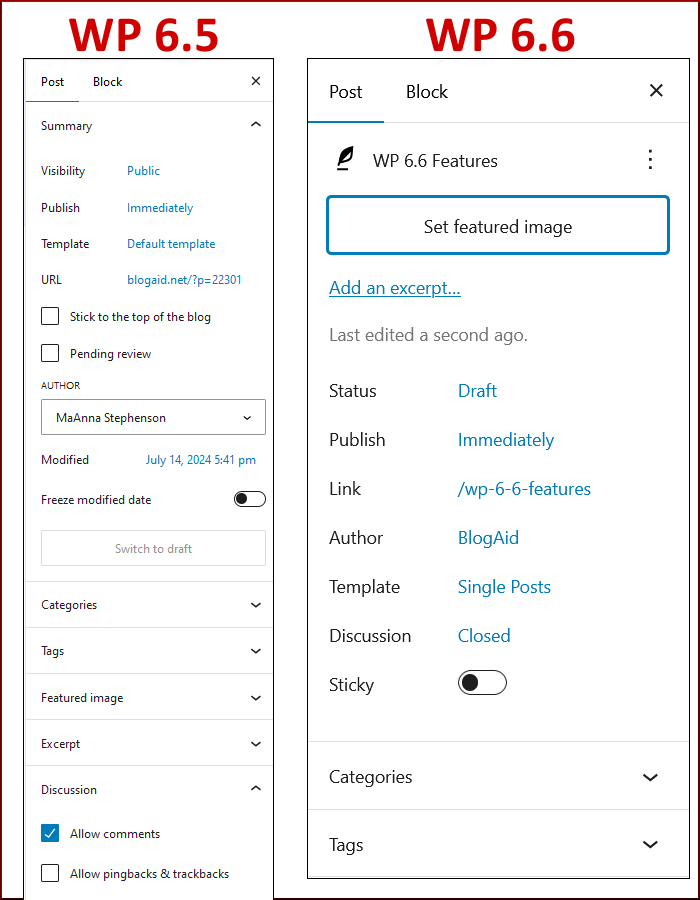
Take a good look at the image below. It shows the Page sidebar in the editor for 6.5 and 6.6.
A few things are in different places, and all the things have a different, cleaner look to them.
The Featured Image section is now a button at the top.
And you no longer have to expand sections to see things like Discussion, Page Attribute and such. Most folks don’t make changes to those things anyway. But if you want to, you just click on the blue word for it to bring up those settings.
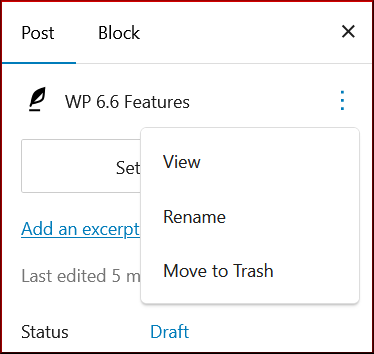
Clicking on the More ellipsis (3 dots in the top right) brings up a few more tasks you can perform.
New Grid Layout Variations
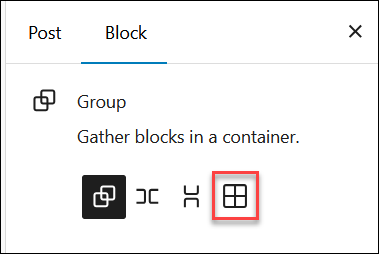
There will be a new choice in the Group and Column blocks that allow you to embed a grid layout.
Styling choices will be auto or manual layout.
Group Multiple Blocks Shortcut
Have you ever created several blocks of content and then decided that you really need to put them all in a Group block?
You don’t have to do copy/paste anymore.
In WP 6.6 there is a new keyboard shortcut to help you do that.
Drag your mouse over all the blocks you want to group to highlight them.
Then press CTRL + G on Windows or Command + G on MacOS and they will automatically be nested inside a Group block.
Negative Margins
Any block that allows a change of margin will now support negative margins.
This is how you get blocks to lay over one another.
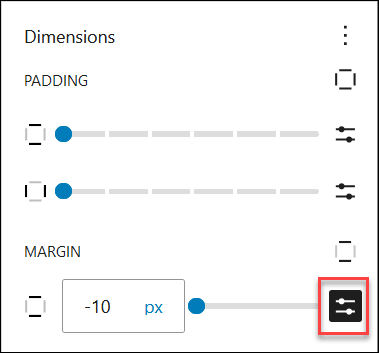
The regular slider control for the Margin does not allow you to go below 0.
So, just click the Use Size Preset icon to the right of the slider and you’ll have an field where you can enter your negative margin.
Featured Image Media & Text Block
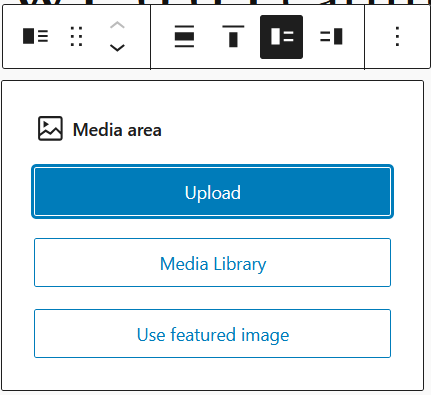
When adding an image to the media side of the Media & Text block, you’ll now have a choice to add your Featured Image.
Customize Shadow Effect
In the 6.5 release, WP included native support for a shadow effect around some blocks, specifically the image block.
WP 6.6 now has shadow support for the Featured Image block as well.
Plus, it will add a way for theme/block devs to define custom styles for the shadow.
Other New Features
Rollback Auto Update
Most of us have our sites set to auto update WP, plugins, and themes for minor releases, which are usually a combo of bug and security fixes. And it’s because of the security releases that we keep things set this way.
Major releases have new features, and those are the ones that we manually update.
It’s rare, but on occasion, an auto update has broken a site.
WP 6.6 will now apply detection for any auto update that causes a catastrophic PHP error and will rollback the auto update to the previous version for us.
However, if the plugin does not cause a catastrophic error, and just borks a function so that it doesn’t work like it used to, there will be no auto rollback, as WP has no way to detect that.
This is why you need to have the WP Rollback plugin installed so that you can manually rollback both minor and major updates if needed.
See my tutorial for How to Restore a Plugin to Its Previous Version with WP Rollback for the method that you need to use during every manual update. And you can use it for all minor updates too.
Why Proper Backups Are So Important
FYI, keep in mind that these auto updates occur regularly. Updates to your host’s server software happen silently in the background too. And your site security measures may have had an update as well.
So if something is suddenly borked on your site, and you know that you didn’t make a change, that doesn’t mean a change hasn’t happened.
This is why you need to ensure you have regular backups that are stored off your hosting.
See my WordPress Backup Checklist to ensure you have a proper backup setup.
New Features for Designers
Theme.json V3
It changes the way properties can be overridden for:
- Font size
- Default font
- Typography
- Spacing size
Read the dev notes for more info.
Site-wide Background Image
WP 6.6 will support the ability to add a background image to display behind every page.
Themes will need to provide a way to select it in the Customizer, though. So, don’t look for it to be immediately available when you update to WP 6.6.
CSS Specificity Changes
WP 6.6 has a new way to override core styles, but maintains support for global styles.
This may primarily affect block styles in plugins that provide extra blocks.
For example, there is a global style for block padding.
All specialty blocks should allow the global styling to be the default, and then that can be overridden in the block settings.
See the dev notes for more info.
Block Style Variations
Styles can now be applied to sections of blocks at once, meaning multiple blocks selected.
The variations have to be defined in theme.json.
I have not seen an example of this, but I would think this would be great for Patterns so that you can change the overall look of all the blocks within them to suit your needs.
I’ll be looking for more examples of how devs use this feature and will let you know what I find.
WP 6.6 Field Guide
See the WordPress 6.6 Field Guide for a deeper dive on all of the backside changes that will be of interest to both devs and designers.