
Check Status and Update IP in GA4 Internal Traffic Filter
See how to check the status of your Internal Traffic Filter and update your IP in it to ensure your own visits to your site are not counted in your GA4 Sessions.
This post may contain affiliate links. Thank you for using them to support the free and helpful content you get on BlogAid.
Check Filter Status
Following is a completed filter to exclude internal traffic.
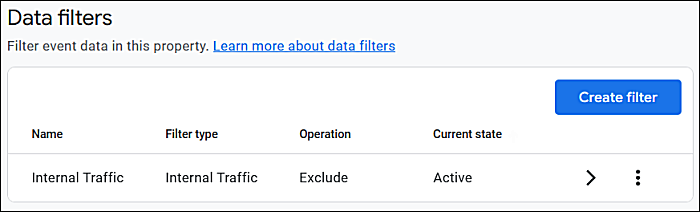
Ensure that the:
- Operation is set to Exclude
- Current state is Active and not Testing
Edit a Filter
If you need to make a change, click anywhere in it.
That will bring up the Edit data filter window.
Update IP
See how to access the tag where you can update your IP.
Access Data Stream
In the left sidebar, click Data collection > Data streams
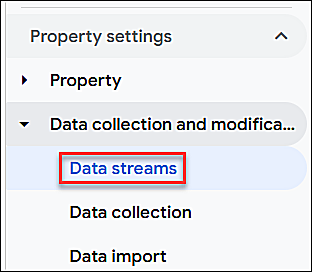
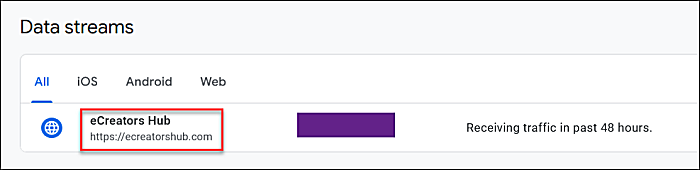
Then click on your data stream.
Access Tag
Scroll down to the Google tag section.
Click on Configure tag settings.
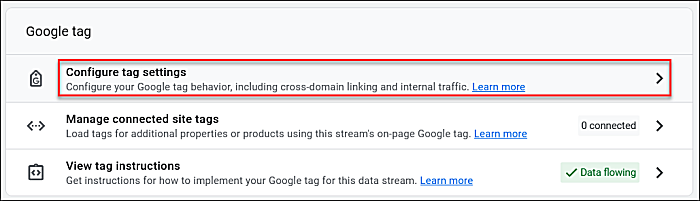
Scroll down to the Settings section.
Find Define internal traffic – if you don’t see it, click Show More.
Click Define internal traffic.
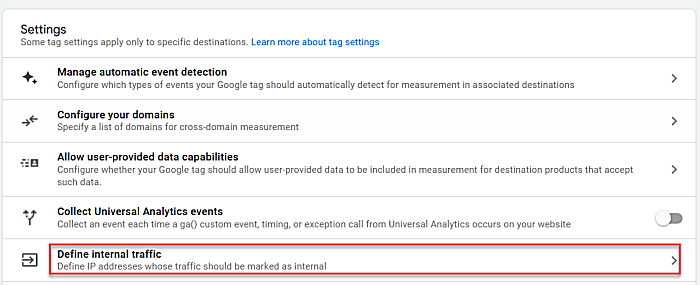
Click on the Internal Traffic rule you originally created.

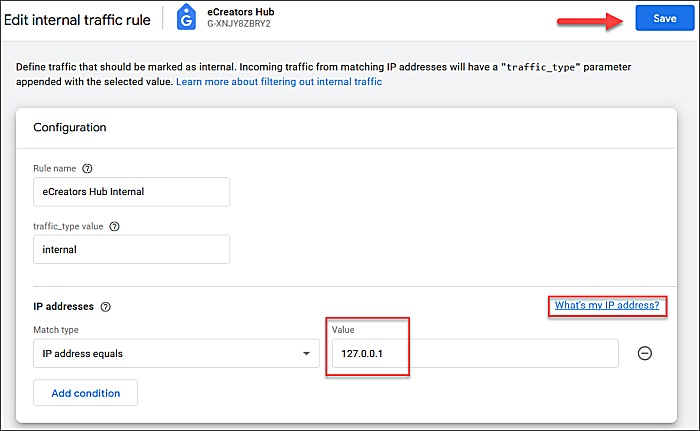
Get Your IP
Click the link on the right to get your current IP address.
Input it into the Value field.
Click Save in the top right.
Fix Constantly Rotating IP
If your IP is constantly changing, you can fix that with a VPN that has a static/dedicated IP address available.
Need a VPN?
My clients and I use Private Internet Access for my VPN and Dedicated/Static IP.
NOTE: Your router rotates your wifi IP constantly for better security. Plus, your IP is tracked on every site you visit. So, you only want to use your Dedicated/Static IP for logging into your site.

As always, thank you MaAnna for the clear and helpful instructions! I have a question about the dedicated VPN and excluding internal traffic to one’s site. I know that you recommend the dedicated/static IP address for logging into one’s own site, but not for regular browsing: will including the static IP address in this spot (in GA4) also exclude traffic to your own site that you might cause, say, by calling up your site (while not using the static IP) to copy a link to share somewhere? I would assume it would not, since you wouldn’t/shouldn’t be surfing the web from that static IP. In which case, we’d still need to exclude whatever our current IP address is in GA4, correct? Since I use primarily wifi in my old house (only a few spots easy to set up ethernet) I find that my IP address is different literally every time I go to check it – I know it’s changed at least twice in one month, for example.
GA4 has changed how setting that filter works. You can’t add your IP like you did before. I guess it auto detects it. You would have to add another filter and rule for it. But honestly, if you’re not checking your site 100x a month, I wouldn’t worry about it skewing your metrics too much.