
How to Add Google Analytics Tracking Code to Your Site

See how and why to dump Google Analytics plugins and add the tracking code directly to your site.
Encountering errors when you try to add the code? See this tutorial on how to fix ModSecurity errors.
Why Not to Use Google Analytics Plugins
Google Analytics plugins place the GA tracking code in the <head> section of your site.
You can easily do that yourself.
Some GA plugins also give you a module in your WP Dashboard that shows 24 hour old analytics data.
While that’s fun, you’re missing the whole picture that would help you create better content.
Google Analytics is a powerful feedback tool.
You want to be in the habit of mining that data directly on Google Analytics, not just looking at vanity metrics.
“But GA is so complicated and I don’t know what I’m looking at,” I hear folks complain.
Really? There are hundreds of free GA tutorials online and dozens of cheap courses.
If not knowing what you’re doing, and a reluctance to learn is your excuse for not gathering the feedback you need to create content that gets clicks and sends traffic to your site, then you have a whole other mindset issue beyond whether or not to use a plugin.
My clients who have money-making sites gather data directly from Google Analytics.
In fact, they watch it like a hawk.
Changes to the GA Plugins
The two most popular Google Analytics plugins are now owned by the same company.
Those plugins are:
- Exact Metrics (formerly Google Analytics Dashboard for WordPress, or GADWP)
- Google Analytics by MonsterInsights
Changes to those plugins, especially GADWP, in early 2020 made them unpalatable to some users and they want an alternative way to add the code.
4 Ways to Add GA Tracking Code
There are two easy ways to do this, one techie way, and one Google way:
- Add the code via an insert header/footer script plugin – #1 recommended way
- Add the code via the header/footer script area of your theme – #2 recommended way
- Add the code to the header.php file of your theme – techie way
- Add the code via the Google Site Kit plugin – don’t do it, hard to implement and slows down your site
How to Add Google Analytics Tracking Code to the Head of Your Site
The video below shows you two ways to add the GA code via the Insert Headers and Footers plugin and through both a Genesis theme and Astra theme.
I’m strongly favoring using the Insert Headers and Footers WPCode plugin for this, and here’s why.
I think the only thing that should be inserted through you theme should be theme related.
If you change themes and forget about those scripts – poof!
Those scripts could include:
- GA tracking code
- Pinterest verification tag
- Facebook tracking pixel
- Ad scripts
Using a plugin for these scripts keeps them theme independent.
So, be sure to check if you already have any scripts in your theme and consider moving them to the plugin so that you have them all in one location.
Coming Out of the Plugins
Before you add the GA tracking code directly to your site, you need to first come out of the plugin you are using.
Follow these steps in conjunction with the tutorial below:
- Check your code as it sits now.
- Deauthorize the plugin.
- Deactivate the plugin.
- Purge cache.
- Check to ensure the code is gone.
- Install the actual code in the Header plugin.
- Purge cache.
- Check the code is there.
- Delete the old GA plugin
Tutorial Video
There is a transcript with screenshots below the video too.
This video shows you how to get your tracking code and add it 3 different ways, including:
Insert Headers and FootersWPCode plugin (same plugin, new name)- Genesis Theme Settings
- Astra Theme Settings
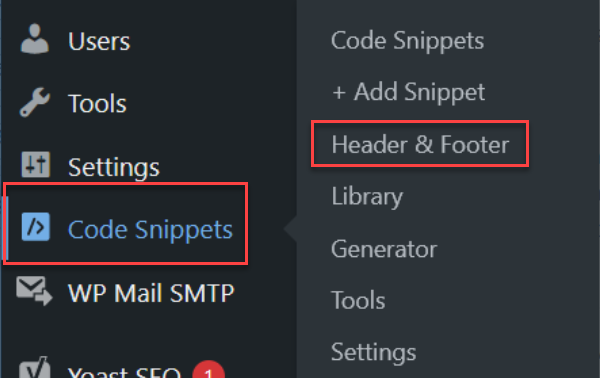
NOTE: WPCode settings are now under Code Snippets in the sidebar.

Tutorial Transcript
In this MaAnna Minute tutorial you’ll see three ways to easily add your Google Analytics code directly to your site without a plugin.
FYI, you may encounter a security issue when trying to add this code.
READ: Fix ModSecurity errors when adding Google Analytics code
2 Ways to Add Code
The two ways I’ll show you how to add your Google Analytics tracking code today are via the Insert Headers and Footers plugin, as well as via the header script areas in Genesis and Astra. Other themes may support that function as well. Check with your theme developer if you need help finding it.
Check for GA Code
First, go to your site and determine if you already have Google Analytics code added somewhere, like via a GA plugin.
Check your plugins list. Two of the most popular start with the words Google Analytics.
Even if you don’t see a GA plugin, check your site to see if it is outputting the GA tracking code now.
An easy way to do that is to go to your Google Analytics account.
Ensure you are on the correct site property by looking for the site Property name in the upper left.
Then in the second column for the Property, click Tracking Info.
Then click Tracking Code.
Copy the Tracking ID.
Now open a new tab and go to your site.
Alt click your mouse in any blank spot. For most folks that will mean left clicking your mouse.
In the pop up, look for View page source.
I’m using the Firefox browser here, so it may look different on other browsers.
Now we want to search for that tracking ID.
On your keyboard, hit Cntl +F. On a Mac, that will be Cmd+F.
A search field will appear in the bottom left.
Paste your Tracking ID into that field.
If the field turns red, then there is no tracking ID on your site.
If it does not turn red, look in the source code to see what is highlighted.
You may need to use the horizontal scroll bar at the bottom to scroll right to see it.
Also use the down arrow to the right of the search field to toggle through all instances of the tracking code.
If you see it, then you have not fully removed the tracking code from your site yet and you will need to find the source of that before continuing with this tutorial.
Perhaps you have already placed the code in one of the header script areas I’m about to show you.
If you don’t find the code, then proceed to the next step.
Which way do you want to add the code?
While you are on your site, determine the way you want to add the code.
I favor only adding theme related things to the theme header script area.
But if you have done that in the past, decide if you want to add this code there too, or move all of it out of the theme and into a header/footer script plugin instead of having it in 2 different places.
Now you’re ready to add your GA code.
Add via Insert Headers and Footers plugin
NOTE: This plugin is now called WPCode
Let’s do it via the Insert Headers and Footers plugin first, and watch this part of the video even if you want to add the code via your theme.
Install and activate the plugin on your site.
Go to Settings > Insert Headers and Footers.
Jump back over to your Google Analytics.
You should still be on the Tracking Code page.
Click once in the code.
It should all highlight for you.
But if it doesn’t, hit Cntl+A on your keyboard to highlight all.
Then hit Cntl+C to copy.
Return to your site.
Click once in the Scripts in Header section.
Then hit Cntl+V on your site to paste.
Scroll to the bottom and save.
Purge Cache
Next, purge all caching such as your local caching plugin and your CDN, like Cloudflare.
Check for Code
Now open an incognito window in your browser.
Go to your site.
And just to be sure, go to a different page than before.
Alt click and View page source.
Hit Cntl+F to bring up a Find and Search field.
Type in UA- and the first number or two of your Tracking ID, or jump back over to Google Analytics and copy it again then paste into the field.
See if you have your GA tracking code on the site.
It should look exactly like the code you pasted into the header section of the plugin.
If it’s there, you’re good to go.
Check Analytics in 24 Hours
Be sure to check in 24 hours to ensure that your Google Analytics are still indeed tracking.
Add Code via Genesis
Now let’s see how to add the GA code via a Genesis theme.
Go to Google Analytics and copy your tracking code.
Then from your WordPress Dashboard, go to Genesis > Theme Settings.
Wait for the Customizer to flip from the native WP Customizer to the Genesis Customizer settings.
You should see a header/Footer Scripts tab, if your theme supports this function.
If not, you’ll need to check with your theme developer.
Click it
If you already have code in the Header Scripts area, click once at the beginning of it and hit Enter on your keyboard to give you a line break.
Click once at the top of the Header Scripts area.
Hit Cntl+V to paste your Google Analytics code.
Then click the Publish button.
Purge Cache
Next, purge all caching such as your local caching plugin and your CDN, like Cloudflare.
Check for Code
Now open an incognito window in your browser.
Go to your site.
And just to be sure, go to a different page than before.
Alt click and View page source.
Hit Cntl+F to bring up a Find and Search field.
Type in UA- and the first number or two of your Tracking ID, or jump back over to Google Analytics and copy it again then paste into the field.
See if you have your GA tracking code on the site.
It should look exactly like the code you pasted into the header section of the plugin.
If it’s there, you’re good to go.
Check Analytics in 24 Hours
Be sure to check in 24 hours to ensure that your Google Analytics are still indeed tracking.
Add Code via Astra Theme
Now let’s see how to add the GA code to the header of an Astra theme.
There are 2 ways to add the code, depending on whether you are using the free or Pro Astra theme.
Please visit the Codefetti site and go to the Astra tutorials.
These tutorial were made by my fellow webmaster and super designer, Michelle Phillips and she has done a superb job of walking you through the steps.
If you encounter errors while adding the code, jump over to my tutorial on how to fix the most common errors that are caused by security measures at your hosting.
Need More Help?
Get a site audit and see all of the plugins you should get rid of, including those that are slowing down your site page load time.
MaAnna, Thank you for digging into all of this and clarifying. And, I really appreciate you sharing my post for adding Google Analytics code to Astra theme.
You’re welcome, Michelle. And I truly appreciate the super Astra tutorials you have made. I send a LOT of folks there.